# What is AI Synthesizer?
{% hint style="info" %}
**GitBook tip:** A succinct video overview is a great way to introduce folks to your product. Embed a Loom, Vimeo or YouTube video and you're good to go! We love this video from the fine folks at Loom as a perfect example of a succinct feature overview.
{% endhint %}
AI Synthesizer by **Deep Noise** is an AI-powered text-to-sound generator trained on a library of over **1 million sounds**.
It transforms your ideas into original audio instantly either through simple text prompts or intuitive tag-based navigation.
Whether you want a *dark, sliding 808 bass with heavy distortion and pitch glide* or an ambient pad for a soundtrack, the process is fast and intuitive.
**Why it helps**
* No long sample digging
* Strong creative control with instant fine tuning
* Original results on every prompt
**Who it is for**
* Professionals who need unique sounds quickly
* Hobbyists who want easy sound creation without deep synthesis knowledge
# List of Features
{% hint style="info" %}
**GitBook tip:** A succinct video overview is a great way to introduce folks to your product. Embed a Loom, Vimeo or YouTube video and you're good to go! We love this video from the fine folks at Loom as a perfect example of a succinct feature overview.
{% endhint %}
#### **Imaginative Discovery**
Transform your creative ideas into professional audio using natural language descriptions. Simply type what you're imagining, and watch as your words become high-quality sounds. Browse and explore our extensive library organized by instrument type, musical genre, or mood to find exactly what your project needs.
#### **Interactive Visual Sculpting**
Shape your sounds in real-time with our intuitive Orb interface. This visual control system gives you immediate access to essential parameters—adjust frequency, resonance, amount, and voices with simple gestures, making sound design feel as natural as sculpting clay.
#### **Advanced Customization**
Take complete control over every aspect of your sound with professional-grade tools:
* **ADSR Envelopes** – Precisely shape attack, decay, sustain, and release for dynamic expression
* **Multi-mode Filters** – Choose from low pass, high pass, or band pass to sculpt your frequency spectrum
* **Delay Module** – Add depth with adjustable time, feedback, division, and mix parameters
* **Reverb Engine** – Create space and atmosphere by controlling size, decay, and mix levels
#### **Library Management**
Keep your creative flow organized with smart library features. Mark your favorite sounds for quick access, add custom tags for personal organization, and browse through your creation history to revisit past inspirations. Export your work as WAV files for immediate use or save as presets to build your signature sound palette.
#### **Prompt-Driven Originality**
Every prompt generates a completely unique sound—no two results are ever the same, ensuring your productions always have fresh, original elements. Express yourself in any language with full multilingual support, breaking down creative barriers for producers worldwide.
#### **Access and Integration**
Work seamlessly across your entire production ecosystem. Access the full experience through any modern web browser, or integrate directly into your workflow with our VST plugin—compatible with all major DAWs on both macOS and Windows. Whether you're sketching ideas on the go or producing in your studio, your sounds are always within reach.
# Installation
{% hint style="info" %}
**GitBook tip:** your product docs aren't just a reference of all your features, use them to encourage folks to perform certain actions and discover the value in your product.
{% endhint %}
####
# In Browser
Getting started with Deep Noise in your browser is the quickest way to begin creating sounds—no downloads or installation required.
**1. Create Your Account**\
Visit Deep Noise and either sign up for a new account or log in with your existing credentials. The sign-up process takes less than a minute.
**2. Activate Your Free Trial**\
New accounts automatically receive free trial credits, giving you immediate access to explore all features. These credits are added instantly upon registration—no credit card required.
**3. Start Creating**\
Once logged in, you can begin generating sounds immediately. The tool runs directly in your browser with no additional setup needed. Your creations are automatically saved to your account and can be exported anytime.
# VST Plugin
#### **VST Plugin Installation**
The VST plugin integrates Deep Noise directly into your music production workflow, allowing you to use AI-generated sounds within your DAW projects.
> ⚠️ **Important Format Notice**\
> Deep Noise is currently available in **VST format only**. Audio Unit (AU) for Logic Pro and AAX for Pro Tools are not yet supported. Please verify your DAW supports VST plugins before proceeding.
**1. Download the Installer**\
Log into your Deep Noise account and download the plugin from the right bottom corner of your dashboard.
Select the right version based on your operating system.
**2. Run the Installation**
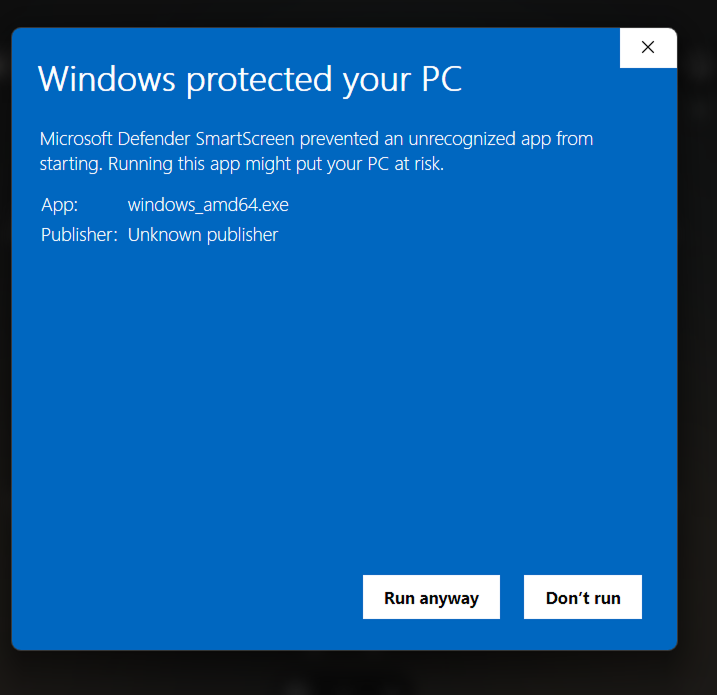
You will possibly get a security trigger - this is normal and the software can be accepted to be trusted by your operating system. We are currently working on receiving both platform certificates.
* **Windows**: Run the installer and select your VST plugins folder (typically `C:\Program Files\VSTPlugins` or your DAW's custom VST directory)
* **macOS**: Run the installer and choose your VST folder (usually `/Library/Audio/Plug-Ins/VST` or `~/Library/Audio/Plug-Ins/VST`)
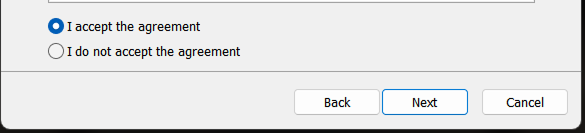
* Accept the EULA.
*If unsure of your VST folder location, check your DAW's plugin preferences.*
**3. Refresh Your DAW**\
After installation, you'll need to make your DAW recognize the new plugin:
* Completely quit and restart your DAW
* Navigate to your DAW's plugin manager or preferences
* Initiate a plugin rescan (this may happen automatically on some DAWs)
* Verify that "AI Synthesizer" appears in your plugin list
**4. Load the Plugin**\
Create a new instrument track in your project and load **"AI Synthesizer"** from your VST instruments list. The plugin will prompt you to log in with your Deep Noise credentials on first use. Once authenticated, you'll have full access to all your sounds and presets directly within your DAW.
> 💡 **Pro Tip**: After successful installation, the plugin maintains your login session. You'll only need to sign in again if you explicitly log out or reinstall the plugin.
# Prerequisites
{% hint style="info" %}
**GitBook tip:** Try out a range of different content types to keep folks engaged and interested in each feature, some content types work for different chunks of information
{% endhint %}
#### **System Requirements**
The Deep Noise VST plugin runs on both **macOS** and **Windows** operating systems. Ensure your system meets the minimum requirements for your chosen DAW before installation.
#### **DAW Compatibility**
Deep Noise is available exclusively in **VST format**, which determines which music production software can host the plugin.
**✅ Compatible DAWs:**
* Ableton Live
* FL Studio
* Cubase
* Reaper
* Studio One
* Bitwig
* Cakewalk
* Tracktion
* Samplitude
* Digital Performer
**❌ Currently Unsupported:**
* **Logic Pro** and **GarageBand** (requires AU format)
* **Pro Tools** (requires AAX format)
*Note: AU and AAX formats are on our development roadmap. Check our website for updates.*
#### **Web Browser Requirements**
For the browser-based version of Deep Noise, ensure you're using a current version of:
* Google Chrome
* Mozilla Firefox
* Microsoft Edge
* Safari
*We recommend keeping your browser updated to the latest version for optimal performance and security.*
#### **Account Requirements**
You'll need an active Deep Noise account to use the plugin. Both **free** and **premium** plans are supported, though certain features may be limited on the free tier.
# Quick Start Tips
### **Creating Your First Sound in the Browser**
Getting started with Deep Noise is intuitive and takes just moments. Here's how to create your first AI-generated sound:
**1. Describe Your Sound**\
Click into the prompt field at the top of the interface and describe the sound you're imagining in natural language. Be as specific or creative as you like—the AI understands musical terminology, emotional descriptions, and abstract concepts equally well.
**Example prompt:**
```
long emotional pad with slow attack
```
Other effective prompts might include:
* *"Warm vintage bass with analog character"*
* *"Ethereal bells with crystalline highs"*
* *"Aggressive lead synth for techno"*
**2. Refine with Tags (Optional)**\
Below the prompt field, you'll find optional tags to help narrow the sonic direction. These tags let you specify:
* **Mood** (dark, uplifting, mysterious)
* **Genre** (ambient, trap, cinematic)
* **Instrument type** (bass, lead, pad, percussion)
Tags work alongside your prompt to guide the generation, but aren't required—your text description alone is often enough.
**3. Generate Your Sound**\
Hit the **Generate** button and watch as your description transforms into audio. The AI typically takes 2-5 seconds to create your unique sound. Each generation is completely original—even using the same prompt twice will yield different results.
**4. Sculpt with the Orb Interface**\
Once your sound loads, the interactive Orb appears, giving you real-time control over key parameters:
* **Filter Frequency** – Brighten or darken the tone by adjusting the cutoff point
* **Filter Resonance** – Add emphasis and character around the filter frequency
* **Delay Mix** – Blend in rhythmic echoes for depth and movement
* **Reverb Mix** – Create space from intimate to expansive
Simply drag within the Orb to hear immediate changes. These adjustments happen in real-time with no latency, allowing you to perform and record parameter changes.
**5. Save Your Creation**\
When you're happy with your sound, you have two options:
* **Save to Library** – Adds the sound to your personal collection with optional tags for organization
* **Export** – Download as a WAV file for immediate use in any project, or save as a preset to reload the exact sound later
# Working in DAW
Once the VST plugin is installed, creating AI-generated sounds directly within your production environment is seamless.
**1. Load the Plugin**\
Add **AI Synthesizer** to any MIDI or instrument track in your project. The plugin loads like any other virtual instrument and responds to MIDI input from your controller or piano roll.
**2. Generate Within Your Workflow**\
Type your sound description directly into the plugin's prompt field and hit Generate. The same natural language system from the browser works here—describe what you need and the AI delivers. Your new sound loads instantly into the plugin, ready to play.
**3. Play and Perform**\
The generated sound immediately responds to MIDI input:
* Play live using your MIDI keyboard or pad controller
* Program notes in your DAW's piano roll
* Record automation for dynamic performances
* Layer multiple instances for rich textures
**4. Shape Your Sound**\
Beyond the Orb controls, the plugin provides professional synthesis parameters for detailed sound design:
* **ADSR Envelope** – Fine-tune the amplitude shape from plucky to ambient
* **Multi-mode Filters** – Sculpt frequencies with surgical precision
* **Delay Module** – Add synchronized or free-running echoes
* **Reverb Engine** – Place your sound in any acoustic space
# Controls
## **Orb View**
The Orb provides immediate access to your most-used performance parameters through an intuitive visual interface.
**Main Orb Parameters:**
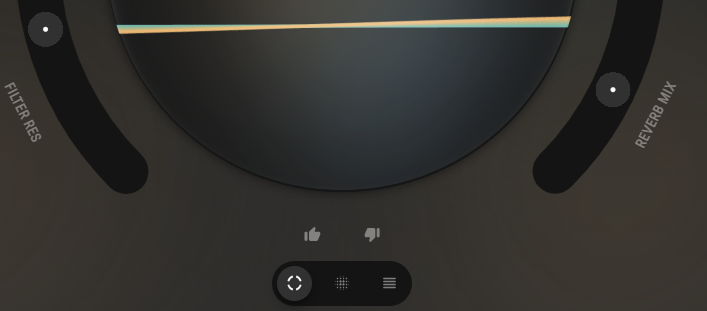
* **Filter Freq (Frequency)** – Controls the cutoff point where frequencies begin to be attenuated. Lower values create darker, warmer tones; higher values result in brighter, more open sounds.
* **Filter Res (Resonance)** – Emphasizes frequencies at the cutoff point, creating a peak that adds character and bite. Higher resonance produces a more pronounced, sometimes whistling quality.
* **Delay Mix** – Balances between the dry (original) signal and wet (delayed) signal. Turn up to add rhythmic echoes and spatial depth to your sound.
* **Reverb Mix** – Controls the blend between dry and wet reverb signals. Increase to place your sound in larger acoustic spaces, from subtle rooms to vast halls.
**Interface Elements:**
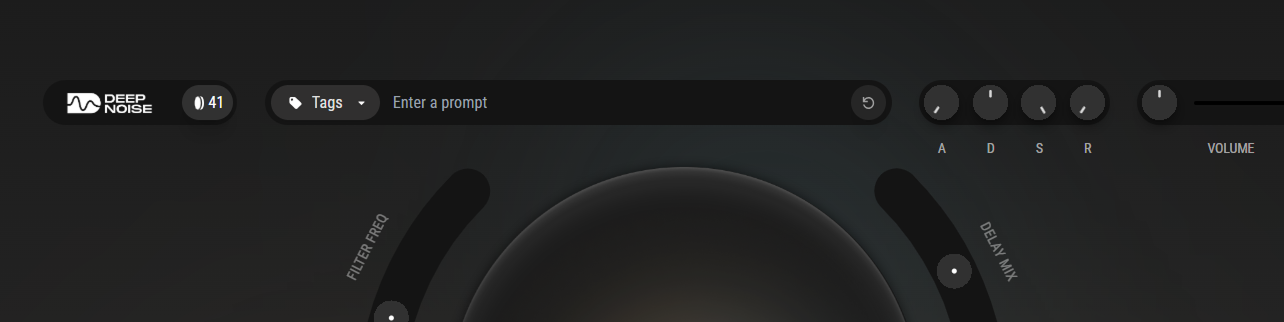
* **Top Bar** – Displays remaining generation credits, tag management, prompt field, quick ADSR macro controls, and master volume
* **Bottom Bar** – Switch between Orb and Detailed views, provide instant feedback with like/dislike buttons to help improve AI generations
## **Detailed View**
Access comprehensive synthesis parameters for precise sound design and professional production techniques.
**Filter Section**
* **Frequency** – Sets the exact cutoff frequency in Hz where the filter begins affecting the signal
* **Resonance** – Controls the amplitude boost at the cutoff frequency (0-100%), adding harmonic emphasis
* **Envelope Amount** – Determines how much the filter envelope modulates the cutoff frequency over time
* **Type** – Choose your filter mode:
* *Low Pass*: Removes high frequencies, creating warmer tones
* *High Pass*: Removes low frequencies, creating thinner, brighter sounds
* *Band Pass*: Preserves only a specific frequency range, creating focused, narrow tones
**Filter Envelope (ADSR)**
* **Attack** – Time taken for the filter to open from its initial state to maximum (0ms - 10s)
* **Decay** – Time for the filter to fall from maximum to the sustain level (0ms - 10s)
* **Sustain** – Level where the filter remains while a note is held (0-100%)
* **Release** – Time for the filter to close after the note is released (0ms - 10s)
**Delay Section**
* **Time** – Sets the delay interval between echoes (1ms - 2000ms), often synced to tempo
* **Feedback** – Controls how much delayed signal feeds back into itself, creating multiple echoes (0-95%)
* **Mix** – Wet/dry balance determining the prominence of the delay effect (0-100%)
* **Type** – Select delay character (standard, ping-pong, analog emulation)
**Reverb Section**
* **Decay** – Duration of the reverb tail, simulating room size from tight spaces to cathedrals (0.1s - 30s)
* **Mix** – Balance between the direct sound and reverberant signal (0-100%)
# Keyboard Controls
#### **Keyboard Shortcuts**
Transform your computer keyboard into a playable musical instrument for quick sound audition and performance.
**Playing Notes**\
Your QWERTY keyboard maps to a piano layout:
* `A W S E D F T G Y H U J` – Corresponds to white and black keys starting from C
* Notes trigger in real-time while the browser tab or plugin window has focus
* Velocity is fixed but can be adjusted via the plugin's velocity slider
**Octave Control**\
Navigate the full pitch range without reaching for your MIDI controller:
* `Z` – Transpose down one octave (shift all keys 12 semitones lower)
* `X` – Transpose up one octave (shift all keys 12 semitones higher)
* Current octave position displays on the virtual keyboard interface
> 💡 **Performance Tip**: Keep one hand positioned over Z/X for quick octave jumping while playing melodies or finding the optimal range for your sound. Every generated sound has a "sweet spot" octave where it exhibits maximum character—bass sounds typically shine in lower octaves (Z twice from center), while leads often sparkle in higher ranges (X once or twice). Experiment to discover where each unique generation sounds most expressive and full.
# Library
Your Library serves as a personal sound vault, automatically storing every sound you generate for future use and inspiration.
## **Organization Features**
**Favorite System**\
Star your best sounds to create a curated collection of go-to presets. Favorites appear at the top of your library when filtered, making your most-used sounds instantly accessible during production sessions.
**Prompt History**\
Every sound preserves its original generation prompt, allowing you to understand what created each result. This becomes invaluable for learning which descriptions produce your preferred sounds and for creating variations on successful prompts.
**Style Tags**\
Each sound is automatically tagged with its detected instrument type, genre, and mood characteristics. These tags make it easy to filter your library—quickly find all your "dark ambient pads" or "energetic leads" across months of sound generation.
**Date Tracking**\
Generation timestamps help you navigate your creative timeline. Sort by date to revisit sounds from specific sessions or find that perfect sound you created last week but forgot to favorite.
## **Library Actions**
**Download Options**\
Export your sounds in two ways:
* **WAV Export** – High-quality audio file for immediate use in any DAW or sampler
* **Preset File** – Saves all parameters including filter settings, envelopes, and effects for perfect recall later
**Library Management**\
Remove unwanted sounds with the delete function to keep your collection focused. Deleted items are permanently removed, so be sure to export any sounds you might want to archive externally.
## **Workflow Tips**
**Smart Sorting**\
Click any column header to sort your library by that attribute. Sort by date to see recent work, by prompt to group similar concepts, or by tags to organize by sound type. Combining sorts with the search function lets you quickly locate specific sounds from hundreds of generations.
**Tag Strategy**\
Tags aren't just automatic—you can add custom tags to group sounds by project, client, or creative concept. This cross-session organization means sounds created months apart can be instantly grouped for cohesive projects.
> 💡 **Power User Tip**: Create "template prompts" by copying successful generation texts from your library. When you find a prompt structure that consistently delivers quality results, save it externally as a starting point for future variations.
> ✅ **Best Practice**: Export preset files for your hero sounds immediately after creation. This ensures you'll never lose a perfect sound even if you later modify it during a session or accidentally delete it from your library.
# Pricing
### **How Credits Work**
Deep Noise operates on a credit-based system where each sound generation consumes credits from your account balance. This transparent model ensures you only pay for what you create, with no hidden fees or surprise charges.
**Credit Consumption**\
Each time you generate a new sound—whether in the browser or VST plugin—one credit is deducted from your account. Regenerating or creating variations also uses credits, encouraging thoughtful experimentation while keeping costs predictable. You can see this in the upper left corner of UI.
### **Available Plans**
**Free Plan**\
Perfect for exploring Deep Noise's capabilities before committing to a subscription. Your free account includes:
* Starter credits to test the full feature set
* Access to both browser and VST plugin versions
* Full sound customization controls
* Library storage for your generations
This tier is ideal for hobbyists, students, or professionals evaluating whether Deep Noise fits their workflow.
**Premium Plans**\
Designed for active producers and professional musicians who rely on AI-generated sounds for regular production work. Premium benefits include:
* **Generous monthly credit allocation** for extensive sound generation
* **Priority processing** ensuring faster generation times during peak usage
* **Advanced features** including batch generation and extended parameter controls (we are still defining the scope)
* **Priority support** for technical assistance and feature requests
### **Credit Management**
**Monthly Rollover**\
Unlike traditional subscriptions where unused value disappears, Deep Noise credits roll over to the following month. This flexibility means you won't lose credits during lighter production periods—they accumulate for when inspiration strikes and you need to generate multiple sounds quickly.
# Can generated music be commercially used?
## Short answer: YES!
**What You Can Do**\
All sounds generated with Deep Noise are fully cleared for commercial use while you maintain an active subscription (free or premium). This includes:
* Released music on streaming platforms and physical media
* Film, TV, and video game soundtracks
* Commercial advertising and branded content
* Live performances and DJ sets
* Client work and commissioned productions
Your creative work using Deep Noise sounds is entirely yours—no royalties, no attribution required, no hidden licensing fees.
#### **Distribution Restrictions**
**What You Cannot Do**\
Generated sounds cannot be redistributed as standalone audio assets. Specifically prohibited:
* Selling or distributing sounds as sample packs or preset collections
* Uploading to sample marketplaces
* Sharing raw generations in sound libraries or databases
* Sublicensing the sounds to third parties
This restriction protects the value of the service and ensures fair use among all subscribers.
#### **Subscription Requirement**
Your license to use generated sounds in commercial projects remains valid only while your subscription (including free tier) is active. If your subscription lapses:
* Previously released music remains unaffected
* New commercial projects cannot use previously generated sounds
* Reactivating your subscription restores all usage rights
> ⚠️ **Important Note**: These terms apply to the raw generated sounds. Music you create using these sounds as elements remains your intellectual property in perpetuity, regardless of subscription status.
> 💡 **Simple Rule**: You can use Deep Noise sounds to make and sell music, but you can't sell the sounds themselves.